To free up space on an iPhone without deleting photos, open Settings → General → iPhone Storage and look for large apps and downloads first. Offload an unused app or remove offline media you can get again. If Photos still takes the most space, consider Optimize iPhone Storage after you verify that your originals are synced and backed up.
TL;DR
- Look at iPhone Storage before changing anything in Photos.
- Offload unused apps to remove their app files while keeping their documents and data. Check that you can reinstall any app you rely on.
- Use Remove Download where available for files you can retrieve. Keep an independent copy of important photos before changing sync or storage settings.
How to free up space on iPhone without deleting photos
| What takes space | First action | What to verify |
|---|---|---|
| A large app you rarely open | Tap it in iPhone Storage and choose Offload App | Check the App Size and confirm you can get the app again. |
| Music, podcasts, or offline shows | Remove downloads inside the app where available | Keep anything you need when you won’t have internet. |
| Downloaded files in iCloud Drive | In Files, use Remove Download where supported | Confirm it is an iCloud Drive file and the cloud copy opens. |
| Photos is the largest category | Consider Optimize iPhone Storage after backup and sync checks | Enough iCloud space, full-resolution originals available, and a separate backup of important items. |
Start with downloads and unused apps
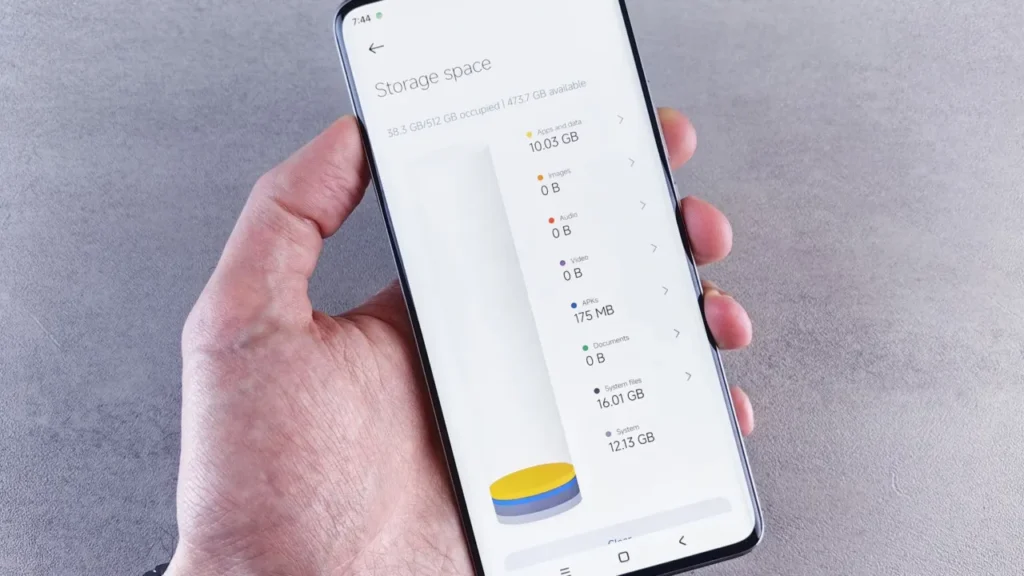
Apple’s iPhone storage guide and screenshot shows the storage breakdown and Offload Unused Apps recommendation. Tap a large app and compare App Size with Documents & Data. Offloading frees the app’s own space. If its downloads account for most of the size, manage them inside the app.
- Write down your available storage and the two largest categories other than Photos.
- Pick an offline movie, album, or map you can retrieve. Use the app’s option to remove the local download.
- If that is not enough, offload one large app you rarely use. Recheck iPhone Storage and repeat as needed.
Example: Make room before downloading an update
Suppose a game shows 2 GB for App Size and 5 GB for Documents & Data. Offloading the game addresses the app’s own size. If you also have a 3 GB offline movie, removing that download may recover more space without touching the game’s data. These are example figures. Start with the largest item you can easily restore.
Back up your photos before changing iCloud settings
Apple’s iCloud Photos guide explains that Optimize iPhone Storage keeps full-resolution originals in iCloud and may store smaller copies on the phone as space is needed. In Settings, check your Apple Account → iCloud → Photos. Confirm you have enough iCloud storage and that you can open recent and older originals. Give the phone time to sync on Wi-Fi.
Keep a separate copy of photos that matter. Follow the external drive backup guide and open several files from the drive. A Samsung T7 is one option for a USB archive. If you already have a compatible drive with enough space, use it.
If you are keeping an edited version, see the iPhone Photos Clean Up guide and how to compare it with the original.
If you use two photo apps, check how iCloud Photos and Google Photos handle deletions before clearing local files.
After an iOS update, check where to find Shared Albums and Utilities in Photos.
iPhone storage FAQs
Will offloading an app delete its photos?
Offloading keeps the app’s documents and data according to Apple. If an app holds irreplaceable pictures outside Photos, export a copy first so you can reach them if the app becomes unavailable.
Will Optimize iPhone Storage free a set number of gigabytes?
It adjusts local storage as needed. The amount depends on your library, sync progress, and capacity.
Can I delete a photo from my iPhone and keep it in iCloud Photos?
If iCloud Photos is syncing, deletions sync too. Copy the file somewhere separate before you delete it from the library.